
Most People Aren’t Using Perplexity Comet Browser to Its Full Potential
8 ways on How I Actually Use It

Most people aren’t using it.
Most people aren’t fully using it.
Most people aren’t maximizing it.
The Perplexity Comet Browser is one of the most underrated AI tools out there — and yet, it’s the one I use the most. I spend around five hours a day inside my browser, and mastering Comet has completely changed how I work.
It’s not just an “AI assistant.” It’s a full-on AI agent that can control almost any app you open in a browser — Gmail, WhatsApp, YouTube, Threads, you name it.
Imagine controlling every app you use with one AI layer sitting on top of it.
That’s what Comet does.
Today, I’ll show you eight ways I use Perplexity Comet to save time, organize chaos, and literally make my browser feel alive.
1. Organizing Tabs Like Magic
If you’re like me, you’ve probably got a hundred tabs open right now.
Comet can clean that up in seconds.
You just tell it:
“Group related tabs by topic.”
Boom. It color-codes and clusters everything — all your AI tools in one group, your emails in another.
Duplicate tabs?
“Close duplicates.”
Done.
If you live in your browser, this alone makes it worth using.
2. Automating Repetitive Prompts with Shortcuts
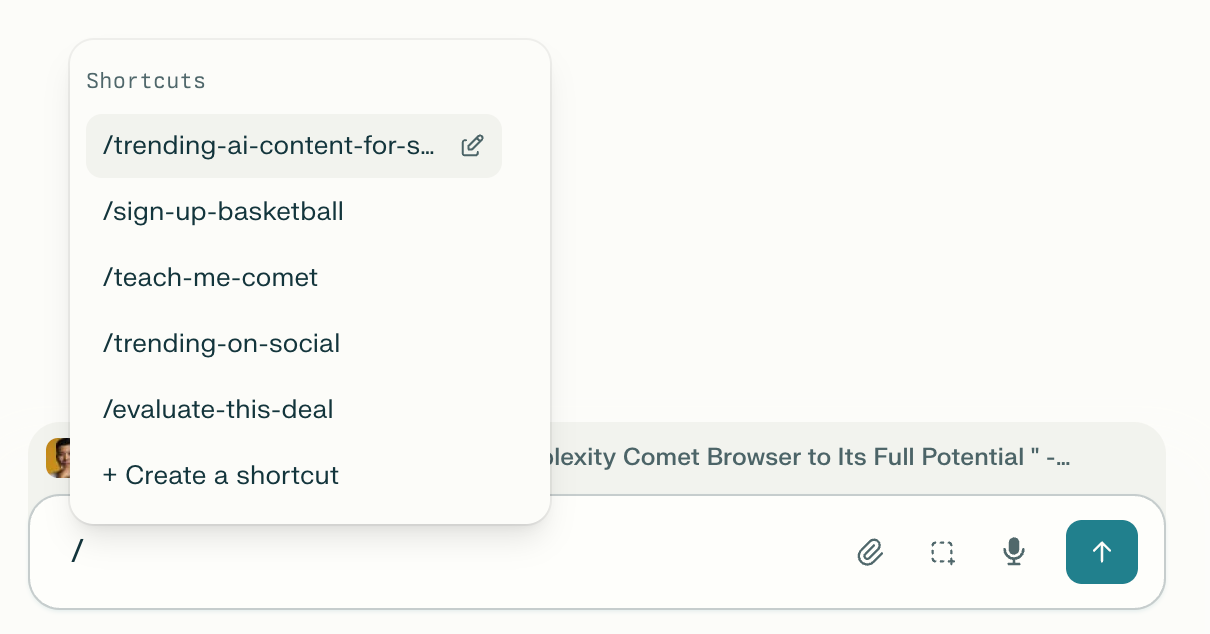
The real magic begins when you start creating shortcuts.
Type / and you’ll see a menu of prompts you can save.
Anything you do more than once — analyzing pages, summarizing posts, even drafting replies — can be turned into a one-click command.
Example:
“Teach me Comet based on my browsing history. Highlight the newest features.”
Save it. Next time, just type the shortcut.
I even have one that turns WhatsApp messages into calendar events. (More on that later.)
3. Finding Viral Content for Social Media
I use Comet to research trending content across Twitter, Reddit, and Threads.
I’ll load up a few tabs — say, Vibe Coding, ChatGPT, n8n — then tell Comet:
“Analyze all these pages. Find AI content that’s trending and has viral potential.”
It scans them all, surfaces the best ones (like “100 free AI agents for marketers”), and saves me hours of scrolling.
Then I save that as a shortcut too. One click, and it feeds me fresh, viral content every day.
4. Searching Browser History (Like a Time Machine)
Comet can even search your browser history — and your emails — simultaneously.
Example:
“Find the last time I bought creatine and help me reorder.”
It searched my Gmail, found my MyProtein receipt from August 25th, and took me right back to the checkout page.
If you’re logged into Amazon or another site, it can even add the item to cart.
Browser history suddenly becomes a searchable knowledge base.
5. Connecting Your Accounts for Real Automation
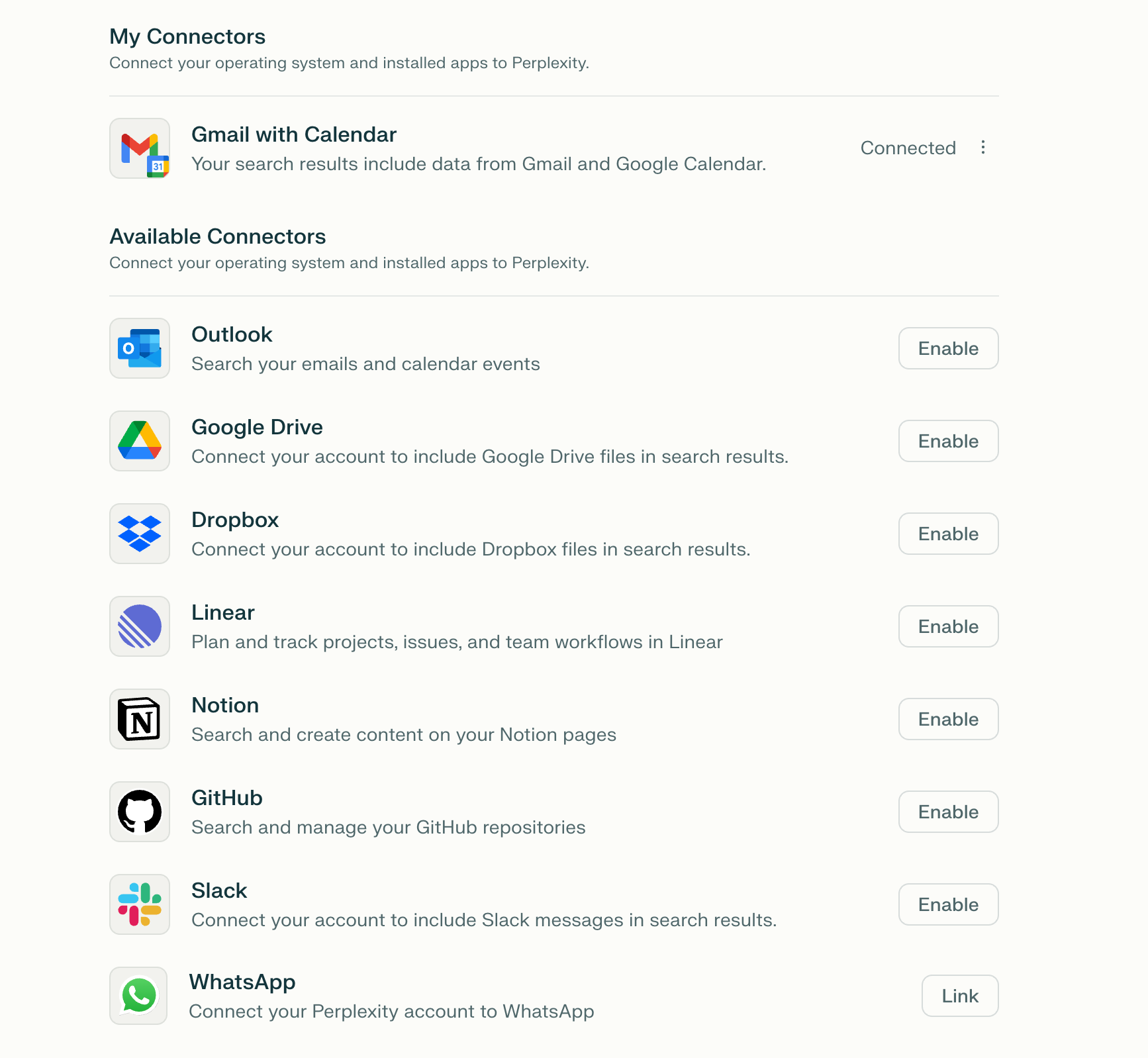
Before the next level of magic, you need to connect your sources.
Go to Perplexity → Settings → Sources → Browse All Connectors.
Link Gmail, Calendar, Google Drive, WhatsApp, Dropbox — whatever you use most.
Once connected, Comet can:
Find old emails and turn them into tasks
Create calendar events directly from chats
Summarize Drive documents without opening them
Your AI becomes context-aware — like it actually knows you.
6. Turning WhatsApp Chats into Calendar Events
Here’s one I use constantly.
I’ll have a chat like:
“Let’s meet at Yoho, 3 PM tomorrow.”
Then I tell Comet:
“Add this to my calendar.”
Instantly, it creates a Google Calendar invite.
If there are multiple people in the group chat, I can even tell it:
“Send email invites to everyone in this chat.”
Scheduling has never been smoother.
7. Reading School Emails (So I Don’t Miss Important Stuff)
Parents will feel me on this one.
Every week, I get dozens of school emails — reminders, activities, random notices.
Now I just ask:
“Read through all emails from my kids’ school. Summarize the important ones.”
In seconds, it tells me:
“Vaccination form due tomorrow.”
“Bring lunch for show-and-tell.”
I even turned that into a daily shortcut so it runs automatically.
8. Summarizing Long Videos and Analyzing My Threads Account
When OpenAI dropped Dev Day, I didn’t have 30 minutes to watch every recap.
So I just used my saved command:
“Summarize this video.”
It broke down the main updates — Code Rabbit, Warp, Charlie Labs — and told me exactly which ones were worth checking out.
Then I took it a step further:
“Analyze my Threads profile. What type of content performs best?”
It analyzed 40 posts, told me which hooks worked, and even gave me ideas for what to post next.
That’s real-time content strategy powered by AI.
Bonus: Using AI to Control AI 🤯
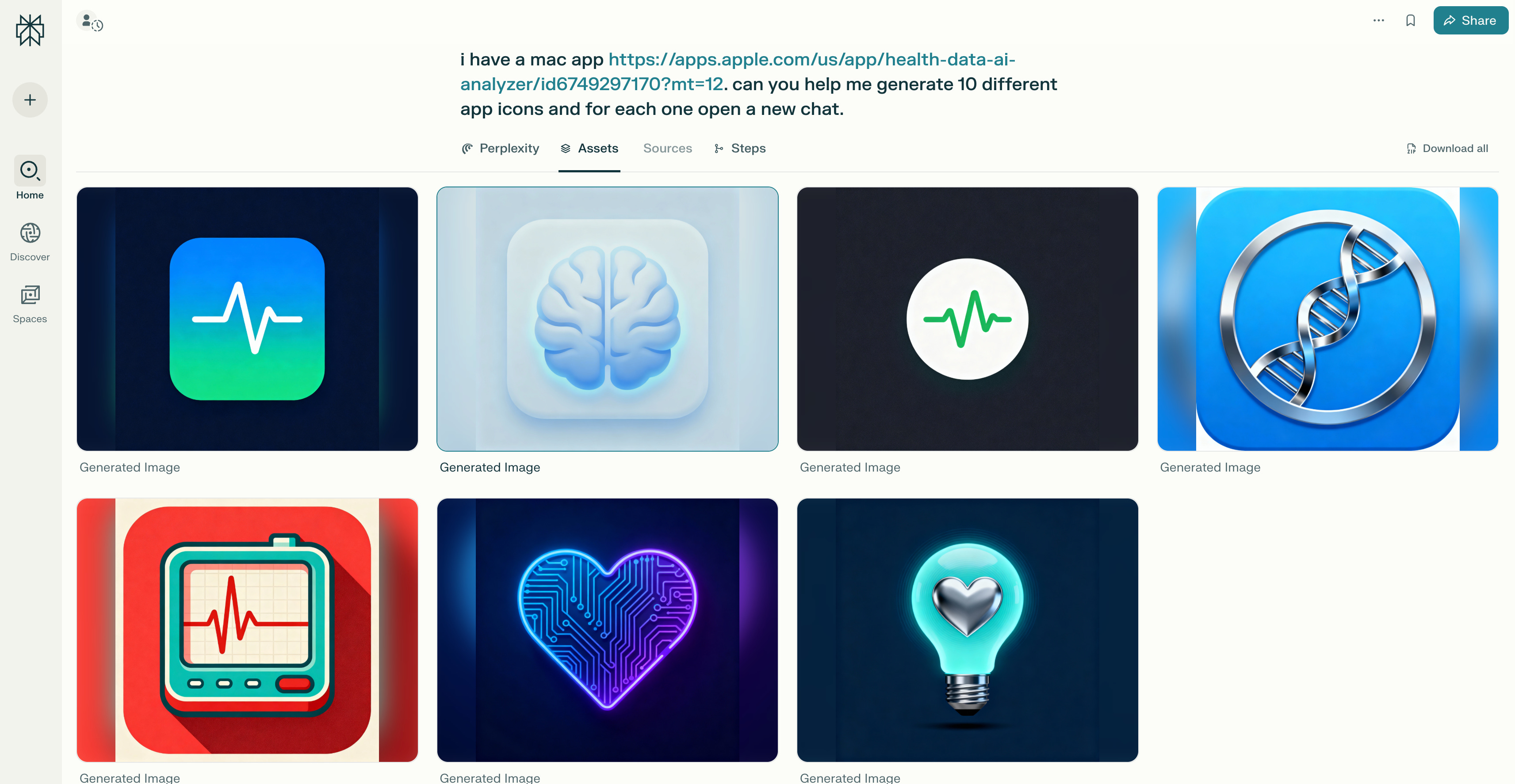
This one still blows my mind.
I used Comet to control ChatGPT itself.
I asked it to:
“Open ChatGPT and generate 10 app icons in parallel for my Mac app, Health Data Analyzer.”
It literally opened 10 ChatGPT threads at once, ran the prompts, and gave me 10 different icon options — all in parallel.
AI controlling AI.
That’s the future.
Final Thoughts
Most people open Perplexity Comet once, ask a random question, and never come back.
That’s like buying a Tesla and never turning on Autopilot.
If you learn how to use it — shortcuts, connectors, browser controls — it becomes your central AI command hub.
In my world, it saves me at least an hour a day.
And it’s the AI agent I use the most.
If this kind of workflow excites you — how to build your own AI systems that actually make your life easier — join my community.
We talk tools, automations, and vibe coding every week.
👉 Join the Vibe Coded AI Community
Would you like me to create a Substack-formatted version (with image placements, emoji headers, and divider lines) so you can paste directly into your post editor? I can also generate a matching hero image for the top (e.g. “AI controlling your browser” concept).