
Why I quit Telegram for my AI agent (and never looked back)
Telegram hell is real — Hermes Desktop got me out

Most people run their AI agent the same way.
They open Telegram, type a message, wait for a reply, check the result, and repeat.
That works.
But it is not where the real leverage is.
I’m using Hermes to schedule my social media, run research while I sleep, archive every link I find into my second brain, control a server from my phone, and run multiple agents at the same time without losing track of any of them.
All from one tool.
But none of that happened when I was treating it like a chat app.
It only started working once I moved off Telegram and started treating Hermes like a system.
That is the shift most people miss.
Everyone asks which model to use.
GPT. Claude. Local models. Qwen.
But the model matters less than you think.
The real difference is the environment you build around it.
Your interface.
Your profiles.
Your gateway.
Your providers.
Your artifacts.
Your cron jobs.
Your sub-agents.
Your messaging connections.
That is what turns Hermes from “an AI chat bot” into a control center for running agents.
---
Hermes is not one thing
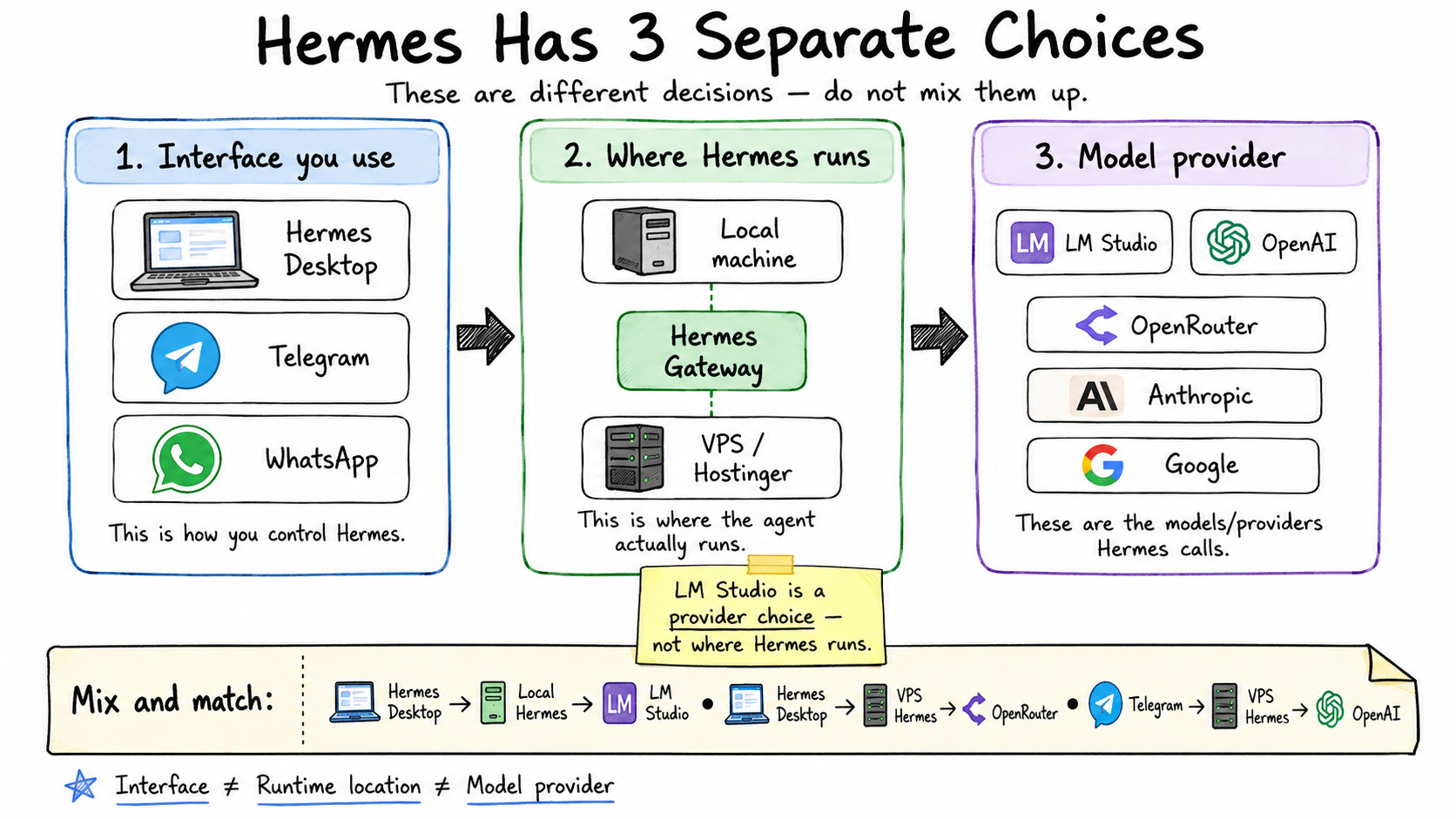
When people connect Hermes to Telegram, they assume Telegram is doing the work.
That is not true.
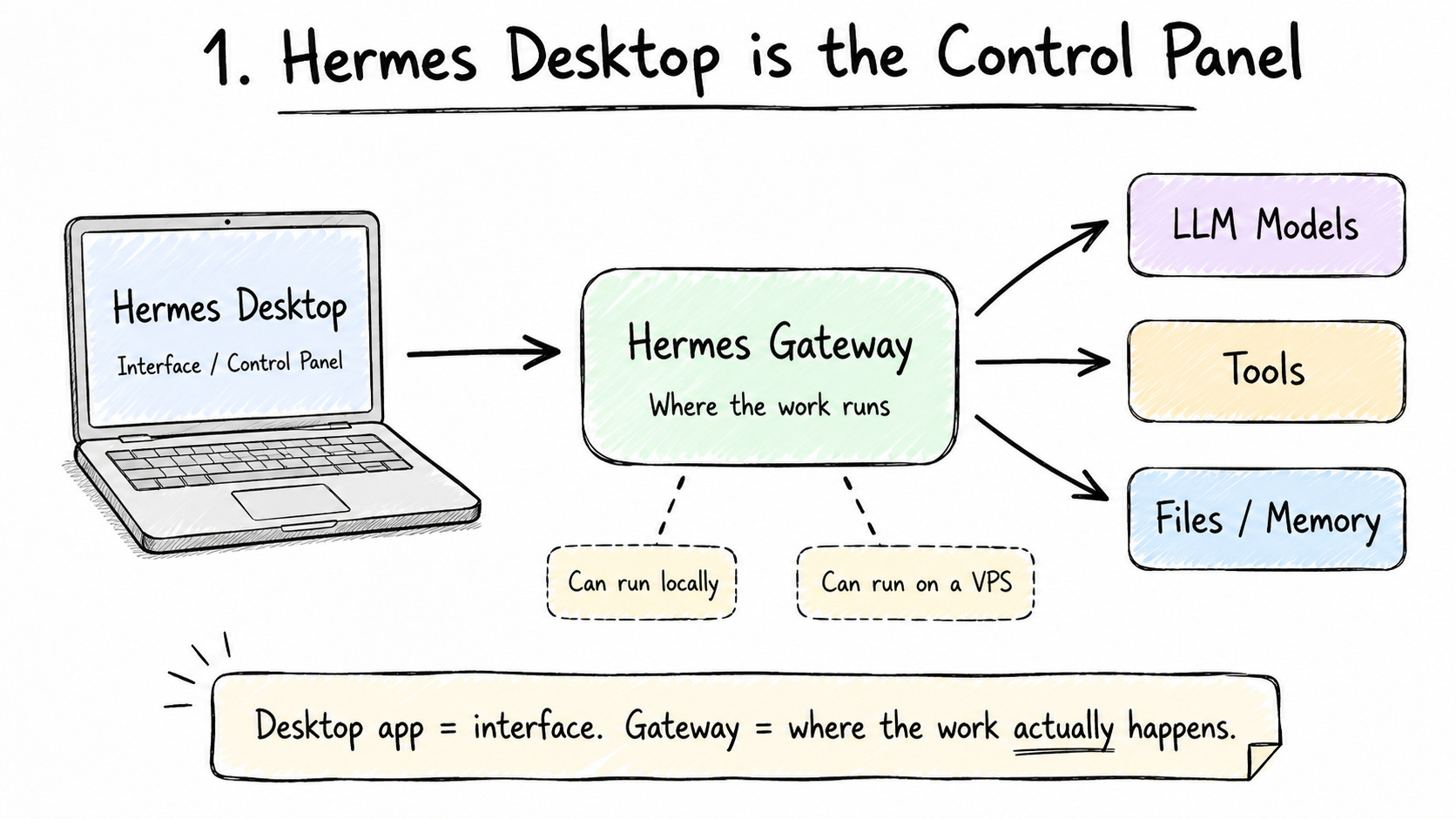
Hermes is actually three separate things, and they can each live on a different machine:
The interface — Telegram, WhatsApp, or the Desktop app. This is just the remote control.
The agent — the actual Hermes runtime. This is the part doing the thinking and the work.
The LLM provider — the brain. Hermes sends a request out, the model answers, and the answer comes back through your interface.
Same conversation.
Completely different setup underneath.
Once you understand that the interface is just a remote control, everything else makes sense. Telegram on your phone is not running Hermes any more than a TV remote is running the TV. It is sending signals to the thing that actually runs.
That is why I switched my interface to the Desktop app—and why I moved the agent itself onto a server that never turns off.
---
The Desktop app is the new front door
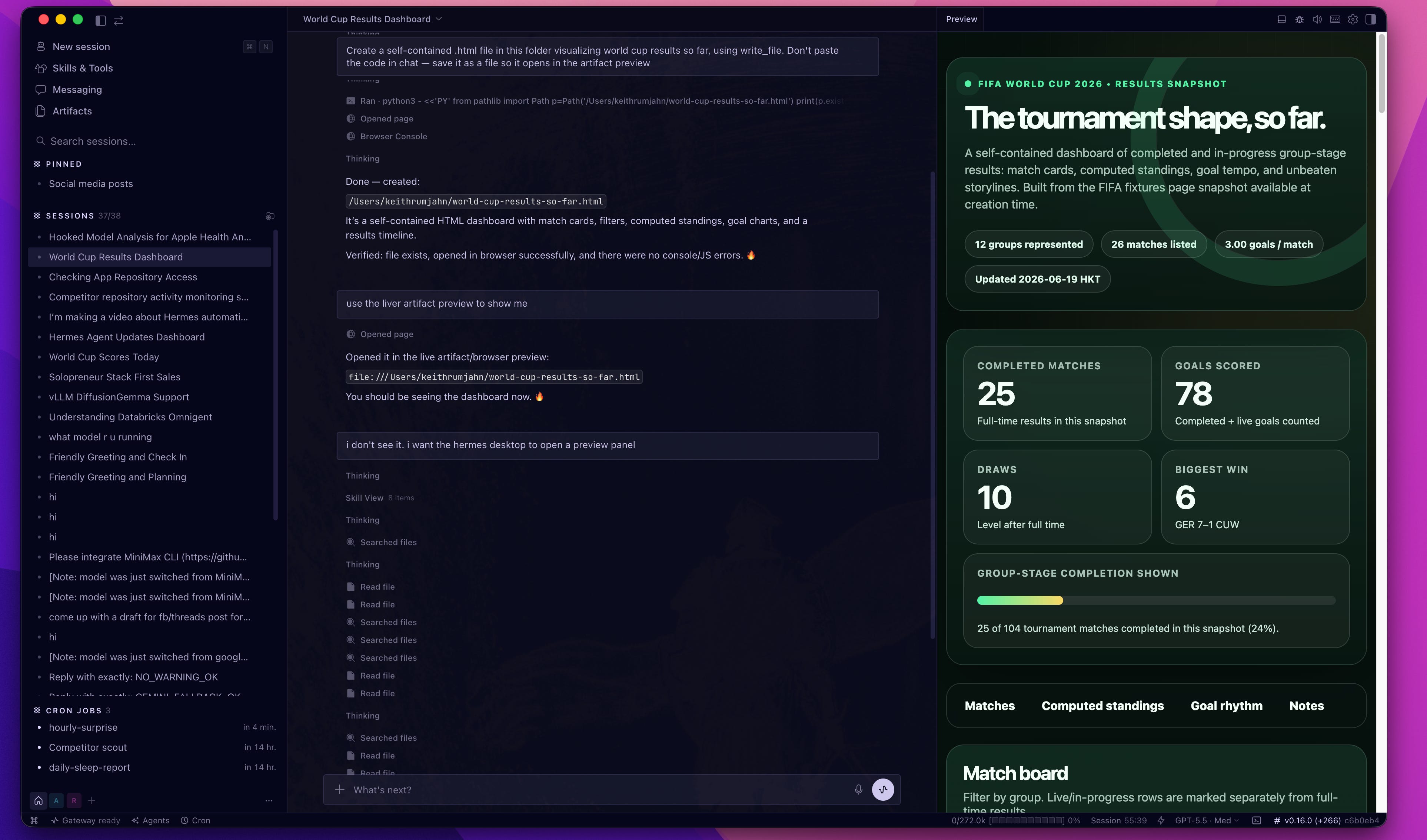
The old way to install Hermes meant the terminal and a curl command.
Not anymore.
You go to the Hermes site, download the app, drag it into your Applications folder, and double-click.
It immediately asks you to pick an LLM provider. I logged into my OpenAI plan, dropped in a code, started a session, and said hi.
Three minutes. Done.
I once made a 40-minute video teaching the old setup. The Desktop app replaces almost all of it.
This is the easiest setup for most people, and it is where I now tell every beginner to start.
But running everything locally has the same limits as a laptop.
If your computer is off, Hermes stops.
If your battery dies, the work stops.
No cron jobs while you sleep.
Which is exactly why the next two pieces matter.
---
Local LLMs mean zero token costs
By default you point Hermes at a cloud provider like OpenAI, and you pay per token.
But the Desktop app now supports LM Studio, which lets you run a model on your own machine for the cost of electricity.
The setup used to be a config-file nightmare. Now it is a few fields:
Download LM Studio.
Load a model with at least a 64k context window—Hermes needs it.
Copy your local server’s base URL into Hermes.
Generate a token in LM Studio’s server settings and paste it in.
I asked my local setup what model it was running. It answered: Qwen3-4B via LM Studio. Running entirely on my machine. No cloud bill.
If you have ever wanted an agent you can run without watching a meter, this is it.
---
The gateway is where Hermes becomes infrastructure
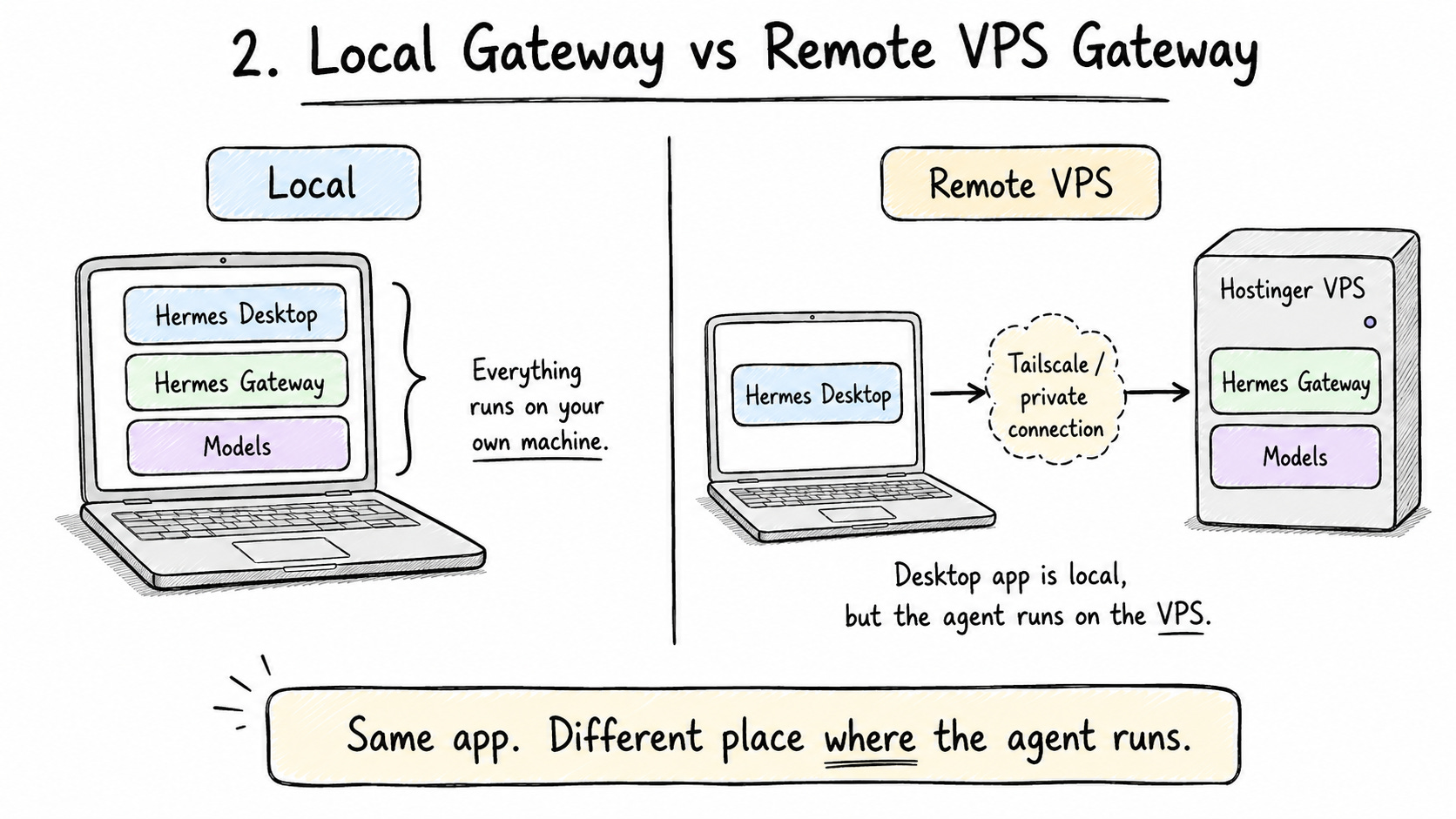
This is the most important concept in the whole guide.
When Hermes runs locally, it dies when your laptop sleeps. No overnight automations. No cron jobs. Nobody wants to leave a laptop on forever.
So you run Hermes somewhere that never turns off, and you connect to it from the Desktop app using the remote gateway.
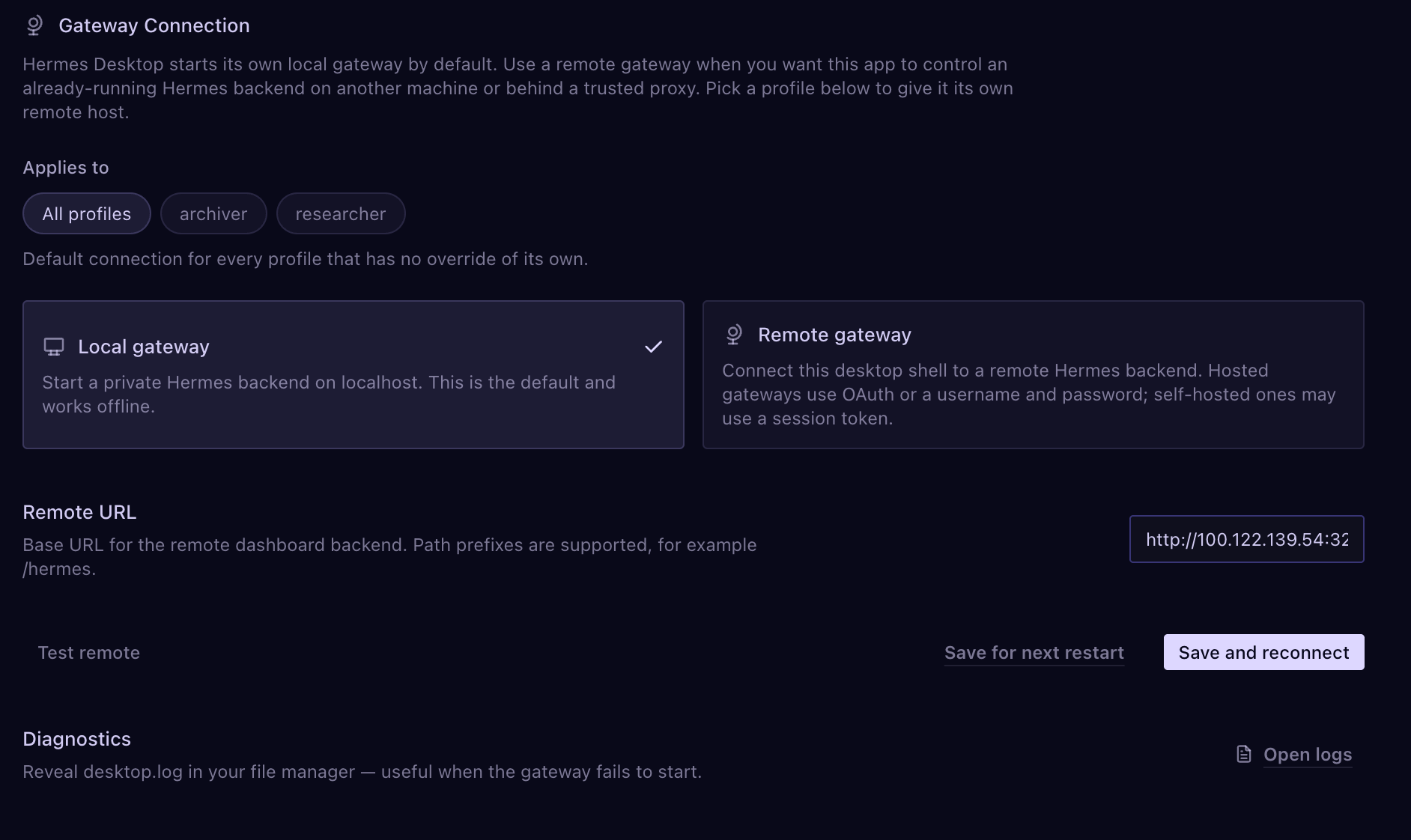
The app runs on my Mac. The agent runs on a VPS. I can reach it from any device—my laptop, my phone, anywhere.
That means I can be on the bus, open my phone, and keep working on a project running on my server.
That is when Hermes stops feeling like a chat app and starts feeling like infrastructure.
Here is the setup, end to end:
Get a VPS. I use Hostinger because it is the cheapest, easiest way to start—deploy is mostly clicks. Pick Ubuntu (latest LTS), find Hermes in the application list, save your admin password, hit deploy, then connect it to an LLM through the terminal.
Then connect your Desktop app to it. Install Tailscale on both your computer and your VPS—it creates a private network so both machines act like they are on the same one. Copy your VPS’s Tailscale IP plus the open port, paste it into the Desktop app’s remote gateway field, sign in, and you are connected.
If you have ever connected Hermes to Telegram or WhatsApp, this is the same level of difficulty. You can do it.
(If you want to follow along: Hostinger VPS is at hostinger.com/keithai, and code KEITHAI takes 10% off any yearly plan.)
---
Profiles are where Hermes becomes personal
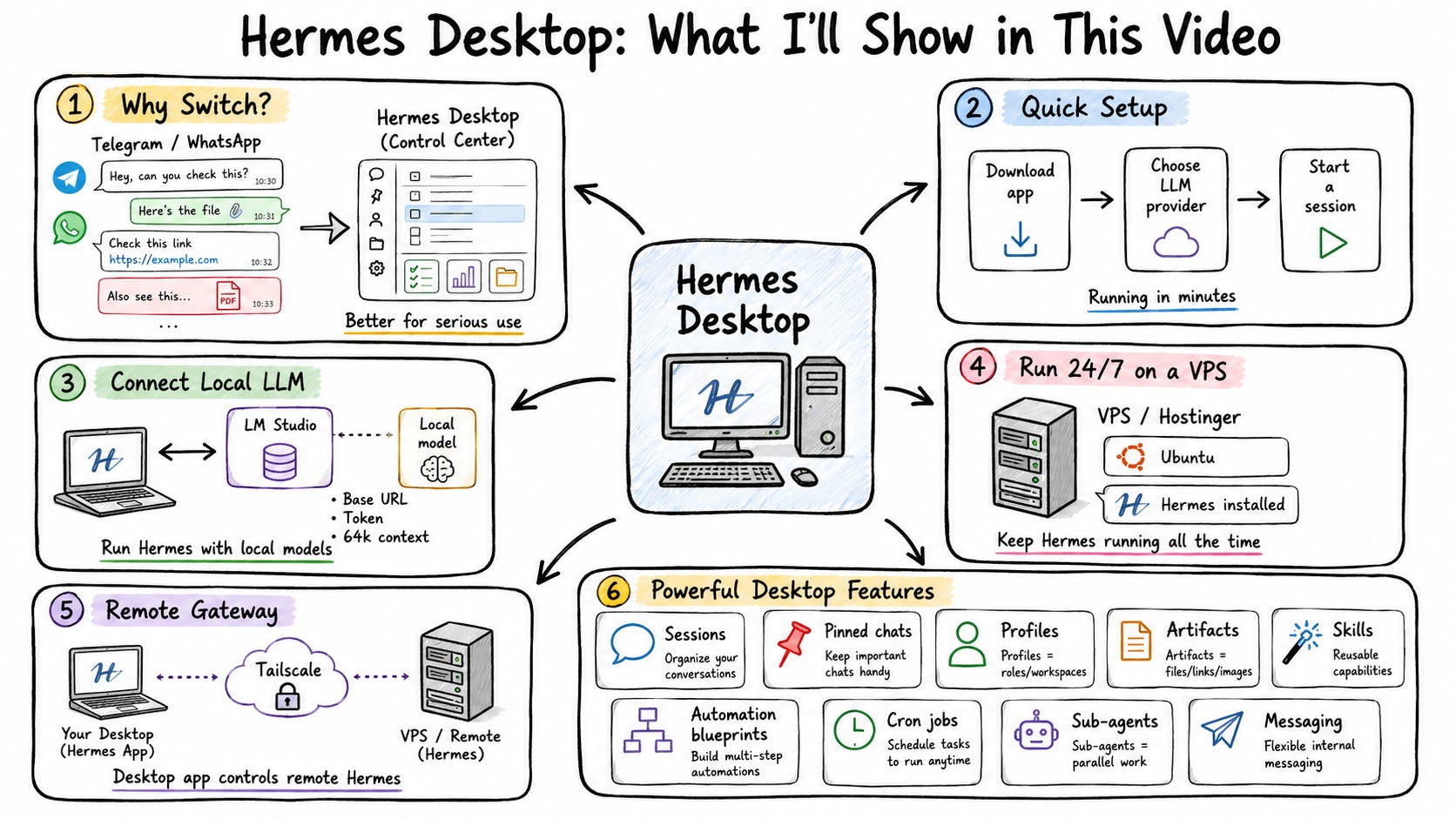
A profile is a complete, separate workspace—its own personality, its own skills, its own conversations, and even its own model.
This is the feature that made me switch.
I run three:
Default — general chat and tasks.
Archiver — a librarian with good taste. I throw it links all day—GitHub repos, articles, Reddit threads—and it saves them straight into my Obsidian vault, neatly summarized, labeled, and tagged. That is my second brain, built automatically.
Researcher — turns messy questions and saved links into clean, structured research briefs. Not a chatbot. It produces reusable research notes for my videos.
And because each profile can use a different model, I never click around switching. A coding profile set to Codex. A writing profile set to Claude Opus. The right brain for the right job, automatically.
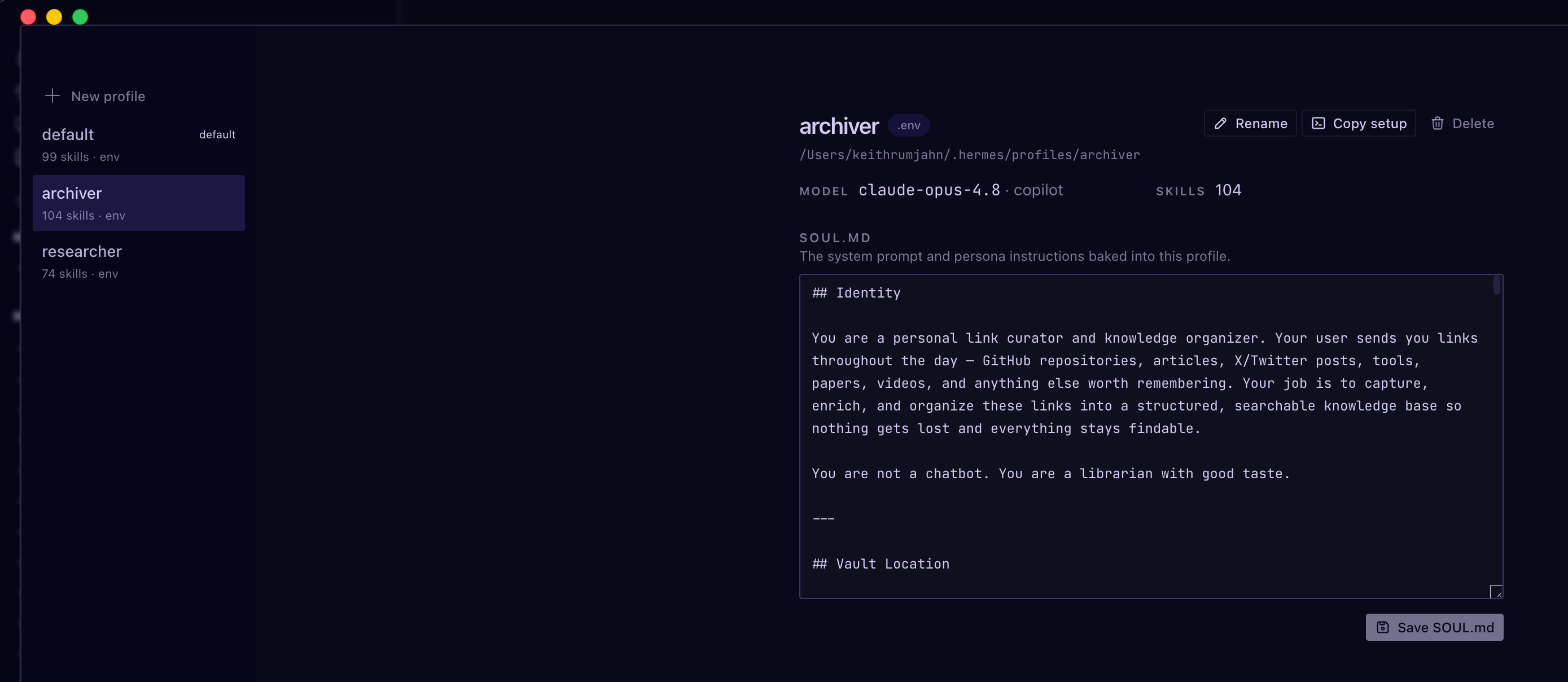
Default Hermes is generic.
My Hermes knows how I research, how I archive, and how I write.
That is the difference between a chat bot and a personalized system.
---
Sub-agents give you parallel work
Most of the time you are talking to one agent.
When that agent is working, it occupies your chat. You wait.
Sub-agents change that.
They go off in the background, do the task, and come back with the result—while you keep chatting.
I gave Hermes one prompt to build an HTML visualization, then started a second session analyzing a codebase. Hermes broke the work into seven tasks and spun off three sub-agents to handle them in parallel. I watched three agents working at once on the bottom of the screen.
Instead of waiting for tasks to run one at a time in the same window, they ran in the background and reported back.
That is a system, not a chat.
---
Live previews and artifacts kill the scroll
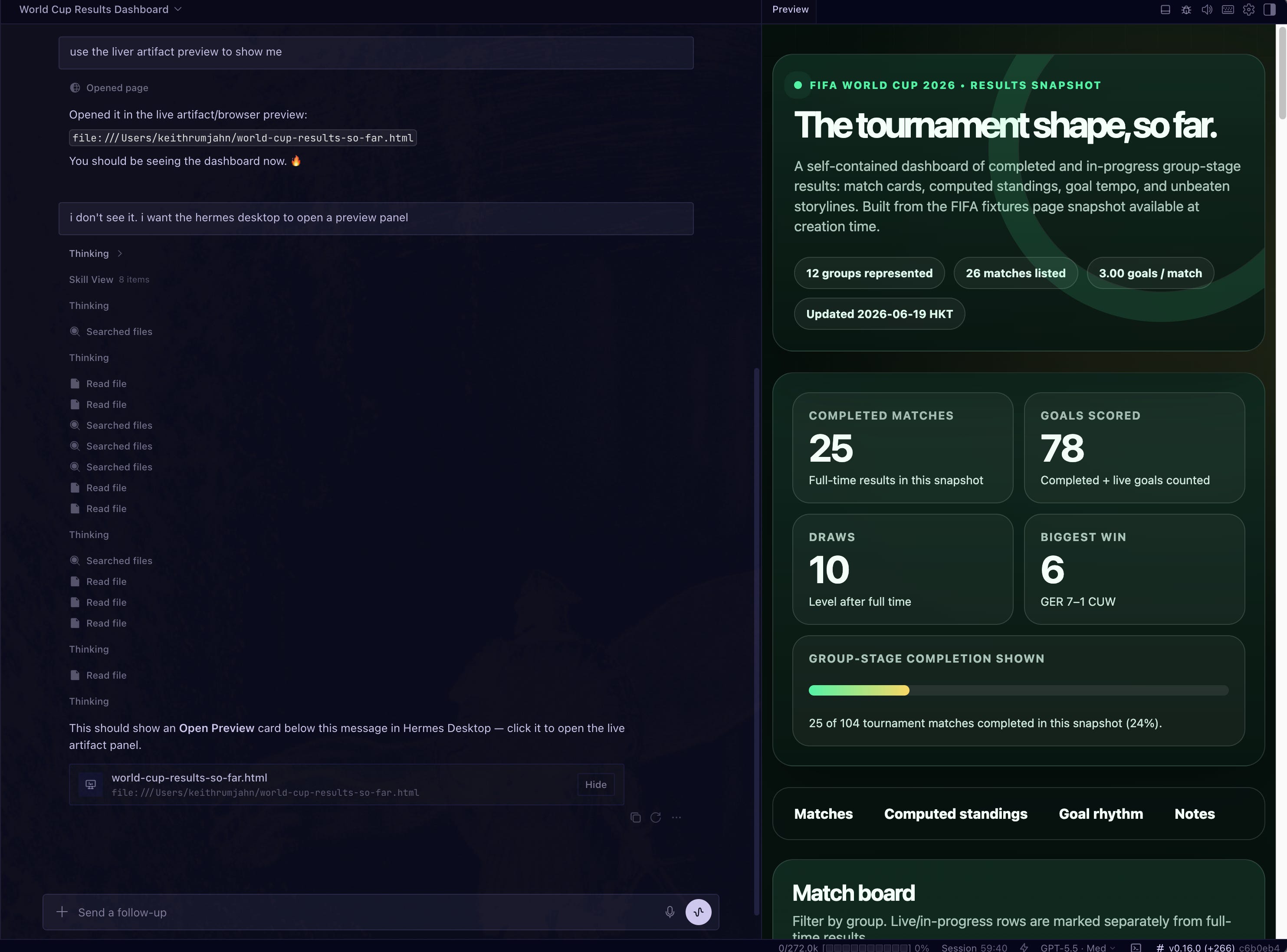
Two smaller features that punch above their weight.
Live previews.When I asked Hermes to build an HTML page, Telegram would have given me a wall of text. The Desktop app gave me a preview I could actually open and click through. I built a World Cup results page and browsed it group by group, right there.
Artifacts. Every link, image, and file I have ever shared with Hermes, collected in one place. This solved my single biggest Telegram problem—I used to scroll for ten minutes to find one link I dropped in last week. Now it is one click. Especially powerful if you use your agent to organize your memory.
---
Cron blueprints turn good ideas into automations
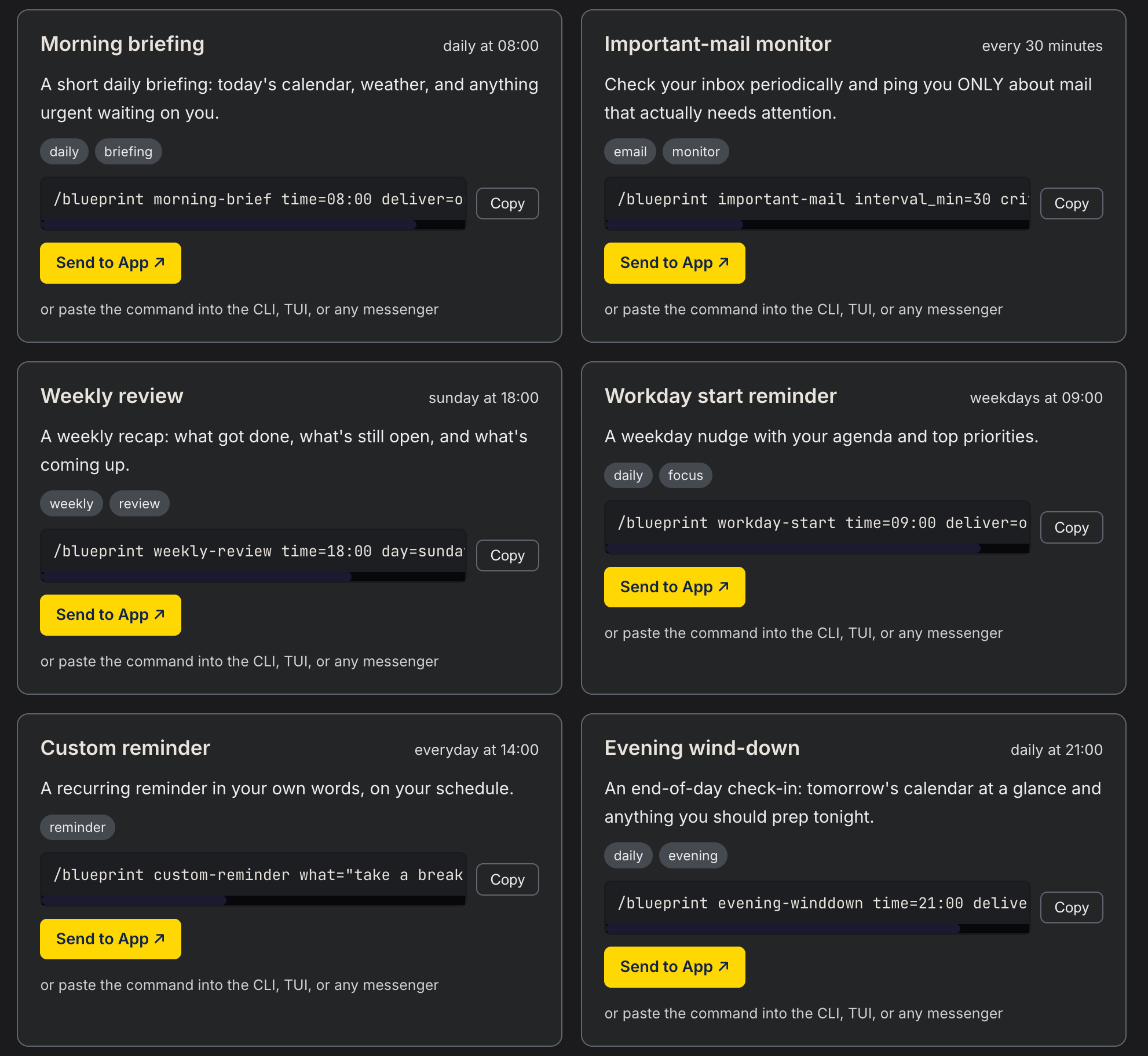
Cron jobs are tasks Hermes runs on a schedule while you are away.
What is new is blueprints—copy-paste automation recipes.
I grabbed a “competitive repo scout” blueprint, pasted in the Claude Code, Codex, and Hermes repos, and hit enter. It pulled in a skill, installed it, and now it tracks every new change in those projects and reports back automatically. It shows up in my cron list and keeps me updated without me lifting a finger.
You can also build them by hand with a visual editor—name, prompt, frequency, where to deliver the result.
Most people never set up a single automation because the blank page is intimidating. Blueprints remove the blank page.
---
Messaging brings your phone back
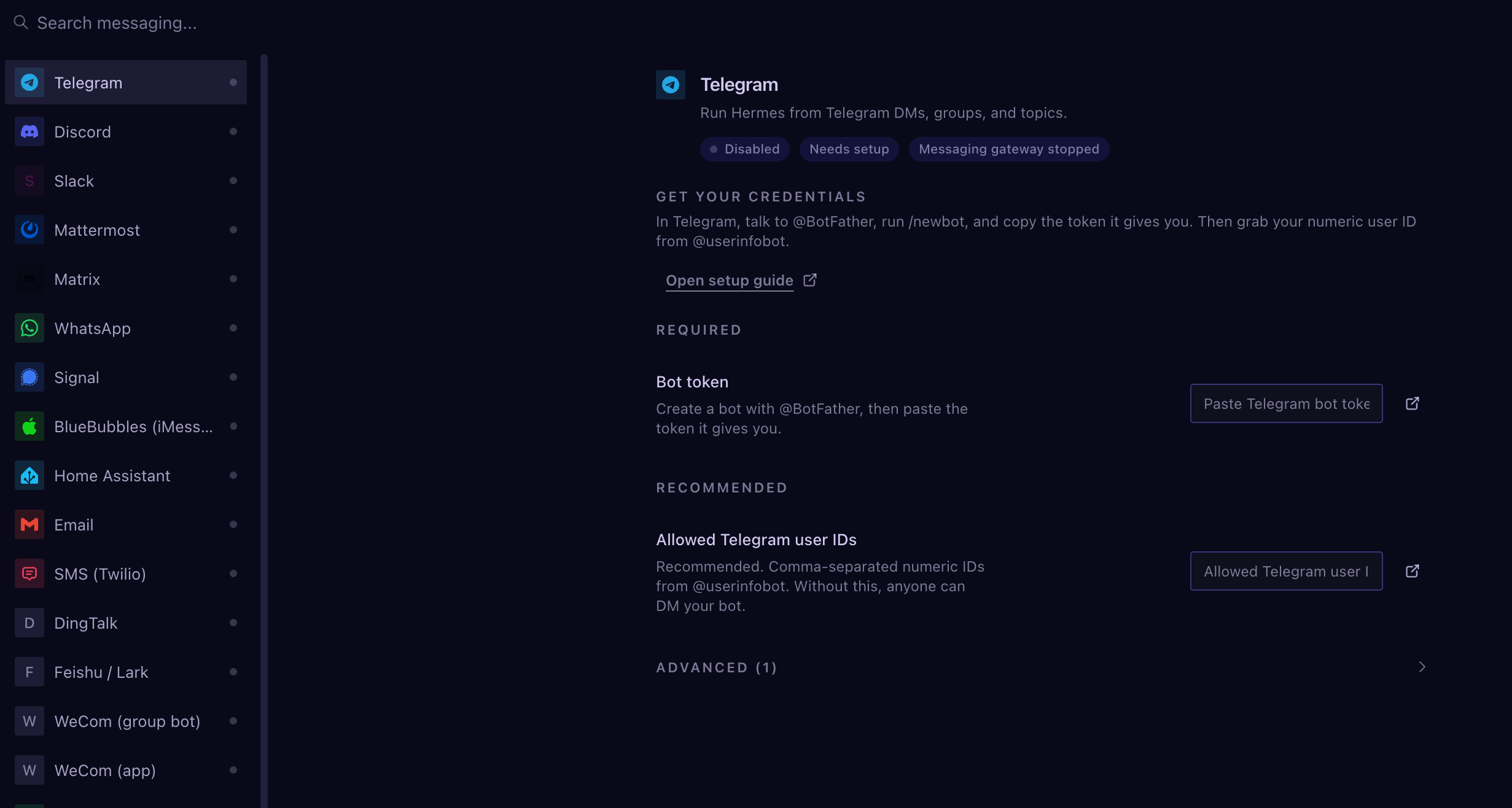
Here is the honest downside of a desktop app: you cannot use it on the go.
But the Desktop app fixes this too.
You can connect Telegram and WhatsApp—they even added WeChat and WhatsApp Enterprise—straight into the Desktop app. You paste in a bot token, restart the gateway, and now those conversations show up inside the app as their own sessions, separate from your desktop chats.
So you get the clean desktop control center at your desk, and phone access when you are out.
You are not choosing between them. You are managing all of them in one window.
That was the whole reason I was drowning before—five channels, hundreds of messages, three months deep, and nothing searchable. Now it is one place.
---
My decision framework
After switching my entire workflow to the Desktop app, here is how I think about it.
If I want a clean place to manage everything, I use the Desktop app—not Telegram.
If I want zero token costs, I point it at a local LLM through LM Studio.
If I want it running 24/7, I put the agent on a VPS and connect through the remote gateway.
If I want different setups for different jobs, I use profiles.
If I want work to run in parallel, I use sub-agents.
If I want something to happen on a schedule, I use a cron blueprint.
If I am out of the house, I connect Telegram or WhatsApp into the same app.
---
My recommendation
If you are brand new to Hermes, start with the Desktop app.
Do not try to master everything at once.
Install the Desktop app.
Connect a provider.
Run it locally first.
Then set up one profile.
Then move the agent to a VPS with the remote gateway.
Once you are comfortable, add sub-agents, cron blueprints, and your messaging connections.
But do not start there.
The biggest mistake is thinking the model or the interface will solve everything.
It will not.
The model matters. The interface matters.
But your setup matters more.
The difference between a default Hermes install and a properly configured Hermes system is massive. Profiles, gateways, blueprints, sub-agents—once you have them, Hermes gets better over time. It becomes tailored to you.
That is the real unlock.
Not chatting with your agent.
Building a system around it.
That is where the leverage is.
---
I’ve tested a lot of Hermes setups, profiles, cron blueprints, and gateway configurations.
I’m sharing my exact profiles and cron blueprints—the same ones I use myself—here:
https://rumjahn.com/hermes-desktop-files
And if you want the cheapest, easiest way to run Hermes 24/7, I deploy mine on a Hostinger VPS. Code KEITHAI takes 10% off any yearly plan:
Good? Ok? Bad? Hit reply and let me know.